Basic Calculator
This basic calculator adds, subtracts, multiplies and divides, and it also handles percentages, square roots, squares, powers and parentheses. Type a calculation such as 12.5 × (3 + 4) or tap the keys, then press =. The answer is 87.5, because the parentheses are worked out first.
The calculator follows the standard order of operations, shows each step it took, and keeps your last few answers on screen so you can check your work. Everything runs in your browser.
How to use the Basic Calculator
- Tap the on-screen keys, or click the Calculation box and type. You can type
*for ×,/for ÷ and^for a power; they are converted for you. Pasting a whole calculation works too. - Press = or Enter. The answer appears in large type with your calculation above it, and it also goes into the display so you can keep going.
- After an answer, press an operator (+ − × ÷) to continue from it, or a digit to start a new calculation.
- Open Show the calculation steps to see the order in which the calculator worked. Your previous answers are listed under Earlier calculations.
- AC clears the display and the answer. ⌫ deletes the last character.
| Key on your keyboard | What it does |
|---|---|
| 0–9 and . | Type digits and the decimal point |
| + - * / ^ % ( ) | Operators (the letter x also means ×) |
| Enter or = | Calculate |
| Backspace | Delete the last character |
| Esc | All clear (AC) |
Basic calculator formula: the order of operations
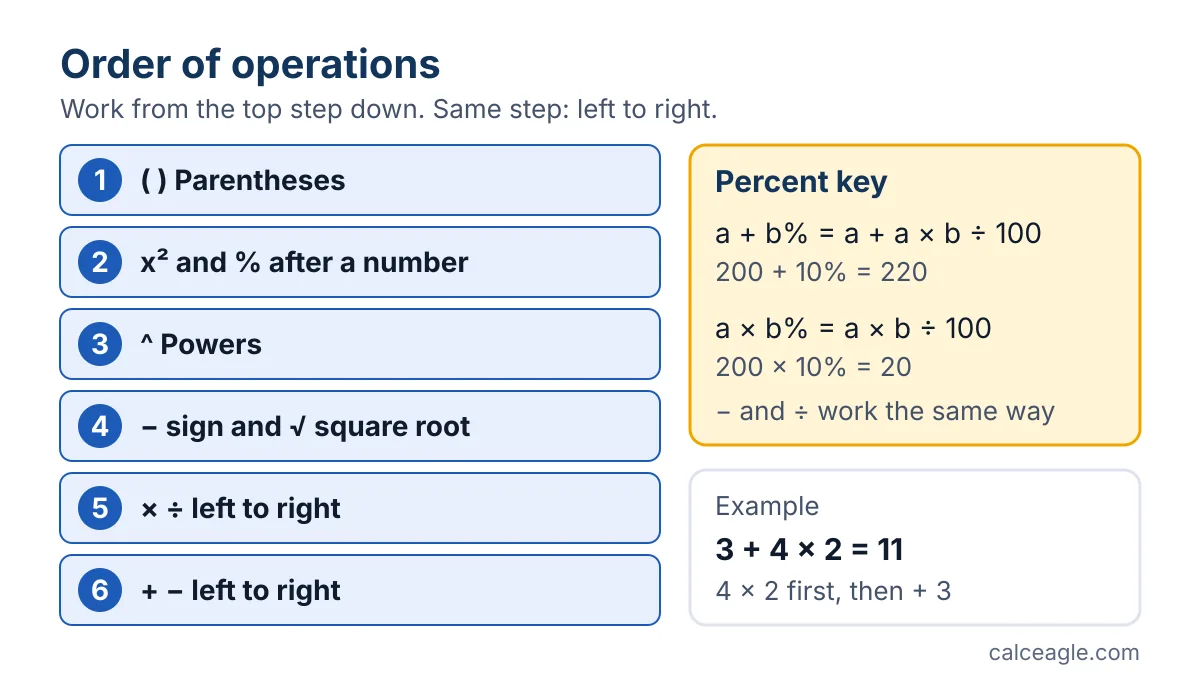
When a calculation mixes operations, the calculator does not simply work from left to right. It follows the standard order of operations, often remembered as PEMDAS: parentheses first, then exponents, then multiplication and division from left to right, then addition and subtraction from left to right. Here is the exact order this calculator uses:
So 3 + 4 × 2 = 3 + 8 = 11, while (3 + 4) × 2 = 14. Multiplication and division share a rank, so 48 ÷ 4 ÷ 2 = 12 ÷ 2 = 6, not 48 ÷ 2 = 24.
How the % key works
Percent keys are not standardized. On some Casio desk calculators, for example, 100 + 10% shows 111.1111 because that key performs a markup-on-price calculation. This calculator uses one predictable rule:
| You type | Meaning | Example |
|---|---|---|
| a + b% | a plus b percent of a | 200 + 10% = 220 |
| a − b% | a minus b percent of a | 200 − 10% = 180 |
| a × b% | a times b ÷ 100 | 200 × 10% = 20 |
| a ÷ b% | a divided by b ÷ 100 | 200 ÷ 10% = 2,000 |
| b% on its own | b ÷ 100 | 15% = 0.15 |
To use a percent as a plain number inside a sum, wrap it in parentheses: 200 + (10%) = 200.1. For questions like "what percent of 40 is 33?", the Percentage Calculator is quicker.
Example: tip and split a restaurant bill
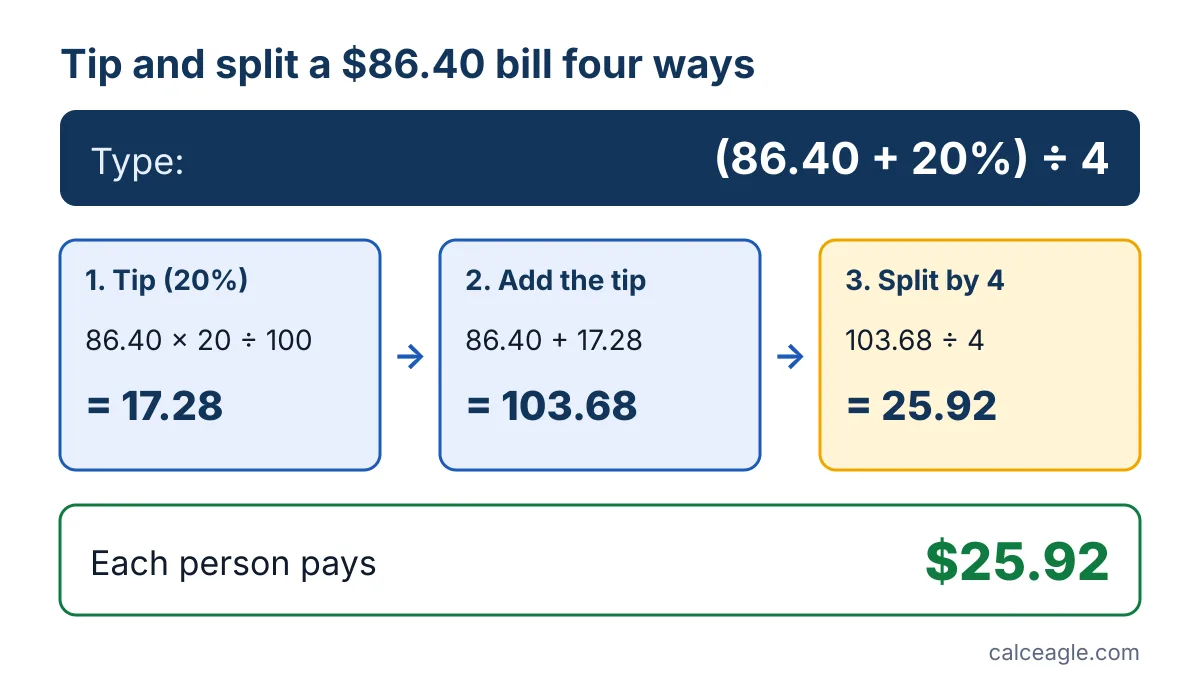
Four friends get an $86.40 dinner bill. They want to leave a 20% tip and split the total evenly. Type:
(86.40 + 20%) ÷ 4The calculator works inside the parentheses first:
- Tip: 20% of 86.40 = 86.40 × 20 ÷ 100 = 17.28
- Bill plus tip: 86.40 + 17.28 = 103.68
- Split four ways: 103.68 ÷ 4 = 25.92
Each person pays $25.92. You get the same answer with 86.40 × 1.2 ÷ 4, because adding 20% is the same as multiplying by 1.2.
How to read the result
- Answers show up to 12 significant digits, so 1 ÷ 3 = 0.333333333333. Whole numbers up to 15 digits are shown in full, with commas.
- Very large or very small answers use scientific notation. 9.99999999998 × 10^23 means move the decimal point 23 places to the right.
- Negative answers use a true minus sign, as in −4.
- If the calculator can't read what you typed, it says what is wrong and where, for example "“+” is followed by “×” at character 3."
Assumptions and limitations
- Decimal rounding. Computers store numbers in binary, and most decimal fractions, including 0.1, cannot be stored exactly. That is why adding 0.1 three times in many programs does not give exactly 0.3. To behave like a desk calculator, this one rounds each step to 15 significant digits and shows up to 12, so 0.1 + 0.2 = 0.3 and 0.1 + 0.2 − 0.3 = 0.
- Carrying an answer forward. The display shows the rounded answer, but if you continue from it, the full value is used. 1 ÷ 3 = followed by × 3 = gives 1, not 0.999999999999.
- Range. Results larger than about 1.8 × 10^308 are reported as an overflow, and extremely small results round to 0.
- Real numbers only. The square root of a negative number, or a negative number raised to a fractional power, has no real answer, so you'll see an error. Use the Complex Number Calculator for those.
- Conventions. 0^0 is treated as 1. There are no memory keys, and the history disappears when you reload the page. Nothing you type is sent anywhere.
Common mistakes
- Leaving out parentheses. 100 − 20 ÷ 4 = 95, because division comes first. If you mean (100 − 20) ÷ 4 = 20, type the parentheses.
- Squaring a negative number. −3² = −9, because the square is applied before the minus sign. To square negative three, type (−3)² = 9.
- Implied multiplication. This calculator treats 2(1 + 2) exactly like 2 × (1 + 2), so 6 ÷ 2(1 + 2) = 6 ÷ 2 × 3 = 9. If you mean 6 ÷ (2 × 3) = 1, add parentheses.
- Expecting % to behave the same on every calculator. When in doubt, multiply instead: × 0.2 for 20% of a number, × 1.2 to add 20%.
- Using a comma as the decimal point. Type 12.5, not 12,5. Commas are accepted only as thousands separators, as in 1,250.
Frequently asked questions
In what order does the calculator do the math?
It follows the standard order of operations: parentheses, then powers and square roots, then multiplication and division from left to right, then addition and subtraction from left to right. For example, 3 + 4 × 2 = 11.
How do I add a percentage, like sales tax, to a price?
Type the price, a plus sign and the percent. For a $50 item with 8.25% tax, enter 50 + 8.25% to get 54.125, which rounds to $54.13. To find just the tax, enter 50 × 8.25% = 4.125.
Why do some calculators show 0.1 + 0.2 = 0.30000000000000004?
Many programs store numbers in binary, which cannot represent most decimal fractions exactly, so tiny errors appear in the last digits. This calculator rounds each step to 15 significant digits, so 0.1 + 0.2 shows 0.3.
What does × 10^ mean in an answer?
It is scientific notation for very large or very small numbers. 2.5 × 10^20 means 2.5 with the decimal point moved 20 places to the right, and 2.5 × 10^−9 means it moves 9 places to the left.
Can I use my computer keyboard?
Yes. Type digits and + - * / ^ % ( ), press Enter or = to calculate, Backspace to delete and Esc to clear. You can also paste a full calculation such as 12.5*(3+4) into the Calculation box.
Sources and references
- Order of Operations - PEMDAS — Math is Fun
- Floating-Point Arithmetic: Issues and Limitations — Python Software Foundation
- Why do I get 111.1111... when I calculate 100+10%? — CASIO
Formulas and content last reviewed on October 13, 2026. Last updated October 13, 2026. Results are estimates for general information only. Spotted a problem? Tell us and we will check it.